Final Cut and Cast and Crew Party

Standard

How time flies! It was a year ago when Rae, Rae’s parents, JP, and I travelled to China to start production on Autumn Gem. Earlier last month, we’ve completed the final cut of the film. Tomorrow afternoon, we’ll be showing it to the first time at our cast and crew screening party!

An so begins the next phase — marketing and business development — for Autumn Gem. It’s something we’re both excited and scared about at the same time. On the one hand, we’re happy that we’re able to show a finished product that we’re proud of. On the other hand, there’s the chance that people who see it will not like it! We’ve already experienced a tiny bit of rejection with some of the film festivals to whom we submitted earlier in the year. I like to focus on the positive, however, and that’s the task of showing this film to as many people as possible who are interested in learning about this important heroine from China’s history.

We’ll have photos and a recap from the event after tomorrow!

Upcoming Screenings

Standard

Here is a list of upcoming screenings of AUTUMN GEM:

Autumn Gem Screening

March 2010

  • March 2: University of California, Irvine.
    Location: McCormick Film Screening Room, Humanities Gateway 1070. Time: 7:00pm.
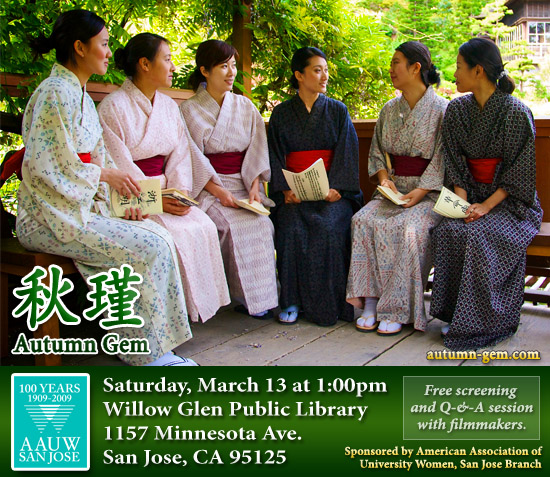
  • March 13: Willow Glen Public Library.
    Location: 1157 Minnesota Ave., San Jose, CA. Time: 1:00pm
  • March 23: University of Nevada, Las Vegas.
    Location: Barrick Museum Auditorium, 4505 S. Maryland Parkway, Las Vegas, NV. Time: 5:30pm.
  • March 24: College of Southern Nevada.
    Location: 6375 W. Charleston Blvd., Las Vegas, NV 89146. Time: 6:30pm.
  • March 27: Arizona State University.
    Location: Lattie F. Coor Hall, Room 170, 976 S. Forest Mall, Tempe Campus, AZ. Time: 2:00pm.
  • March 29: Red Emma’s Bookstore.
    Location: 2640 St. Paul St., Baltimore, MD 21202. Time: 7:00pm
  • March 30: University of Maryland, College Park.
    Location: College Park, MD 20742. Time: 12:15-1:45pm.
  • March 30: Goucher College.
    Location: Baltimore, MD 21204. Time: 7:00pm.
  • March 31: Boston University.
    Location: Room CAS B-12, 725 Commonwealth Ave. Boston, MA 02215. Time: 6:00pm.

April 2010

  • April 5: Wellesley College.
    Location: Collins Cinema, 106 Central St., Wellesley, MA 02481. Time: 4:30pm
  • April 6: Kean University.
    Location: 1000 Morris Avenue, Union, New Jersey 07083. Time: 12:15-1:45pm.
  • April 6: Montclair State University.
    Location: University Hall Room 1040, 1 Normal Avenue, Montclair, NJ, 07043. Time: 7:00pm.
  • April 7: Brookdale Community College.
    Location: Nav I, Student Life Center, 765 Newman Springs Road, Lincroft, NJ 07738. Time: 6:30pm.
  • April 8: Stony Brook University.
    Location: Charles B. Wang Center Theater, Stony Brook, NY 11794-4040. Time: 4:00pm.
  • April 26: Laney College.
    Location: 900 Fallon Street, Oakland, CA 94607-4893. Time: TBA

How I Learned to Hate Scrolling Credits

Standard

One of the very last things to complete with Autumn Gem has been the final credits sequence. I’ve been struggling mightily over the past few weeks trying to get the credits to scroll properly without jerkiness or stuttering. I’ve read all of the forums and tried many of the tips and tricks people have suggested, including:

  • Deflicker filter
  • Motion blur
  • Using Motion to animate the scrolling
  • Third-party plugins
  • Calculating optimal pixels per second for 30fps and 29.97fps frame rates
  • Scrolling a giant, vertical graphic made in Photoshop instead of using Final Cut text generators

Despite my best efforts and hours of render time, the credits never scrolled properly on our MXO-powered 23-inch ADC broadcast monitor or when output to a progressive QuickTime movie. They might start out fine, but every few seconds, the screen would suddenly jerk up a few extra pixels, creating an uncomfortable stutter effect.

At this point, I’ve about given up, and that’s a good thing, because I came up with a simpler solution that looks just as good. Instead of scrolling a 10800-pixel tall Photoshop graphic over seventy-two seconds, we’re cross-dissolving eleven credit screens over that same time. This comes out to about 6 seconds per screen, which is more than enough time for our cast and crew to find themselves.

One day, I’ll figure out the magical formula to getting silky smooth scrolling credits. I’ll leave that task, however, for the next film!

Subtitles

Standard

While we finish up the audio mixing with Matt this week, we decided to make a change to the look of our subtitles in Autumn Gem. Up until today, we’ve been using Final Cut’s standard Text generator to create our subtitles. Here’s a screenshot of what our subtitles used to look like:
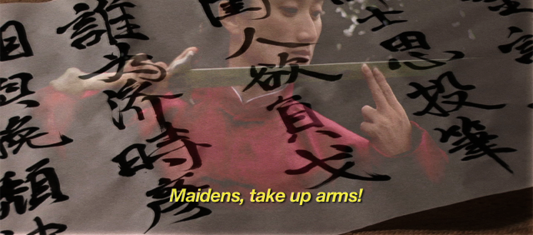
autumn-gem-subtitles-yellow

This afternoon, I began switching over to using the Outline Text generator. This has a number of benefits, chief among them the ability to add a stroke around each character, which greatly improves readability. In addition, we’ve changed the font style from italic to plain, which reduce jaggies when displaying the film on lower-resolution monitors or on DVD. Here’s what our subtitles look like now:
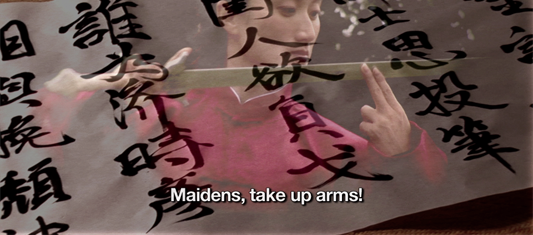
autumn-gem-subtitles-white

I’ve been planning to make this change for many months, but I’ve been procrastinating until now, knowing that it would take me about nine hours to change every text clip in the entire film. Unfortunately, there’s no quick and easy way to batch convert from one text generator to another. I did find some shortcuts that helped speed up the process:

  1. Create an outline text generator with your default settings for font style, size, and stroke width
  2. Place the outline text on your timeline and set the duration to be exactly the length of the text you are replacing
  3. Copy the text clip that you are replacing (Command-C)
  4. Paste Attributes onto the new outline text clip (Option-V)
  5. Double-click on the original text clip
  6. Copy the text under the control tab
  7. Double-click on the new text clip
  8. Paste the new text under the control tab
  9. Repeat with the rest of your text clips

One annoying thing is that the placement controls are different between the two text generators. For instance, setting a center position of (0, 345) for an Outline Text clip does not line up in the same place as setting (0, 345) with a standard Text clip. This means I’ve had to manually position a number of text clips, a time-consuming process that I really don’t want to visit again!

So, the decision to go from straight text to outline text, while simple, requires lots of time, patience, and verification. In the end, though, it’s the right move, as our subtitles are much more readable now than before.

For those type-inclined, we used the classic font Helvetica Neue for main subtitle font. Hoefler Text was used as our serif title font, and ST Kaiti was used when displaying Chinese characters.